





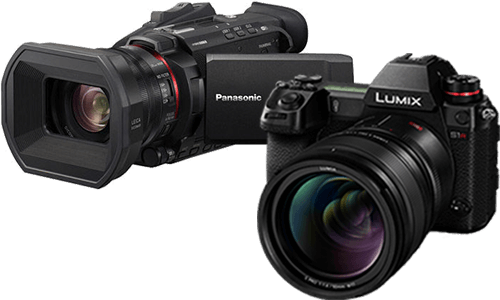



Using Frame Marker on the DC-L10
Frame Marker displays composition guides for framing video, including content intended for different aspect ratios or delivery formats.
How to use this feature
- Open Frame Marker.
- Turn the marker on.
- Open SET to adjust the marker layout.
- Frame the subject within the marker while recording.

- (A) - Center Coordinates (0 being center of the screen)
- (B) - Frame Size
Frequently asked questions
What is Frame Marker used for?
It helps compose video for a target frame or aspect ratio without changing the recording itself.
Does Frame Marker crop the video?
No. It is a display guide only. It does not crop or change the recorded file.
Can I use it for vertical/social framing?
Yes. It is useful when planning alternate framing, such as content that may be edited for social platforms.
Is Frame Marker available as a quick access function?
Yes. Frame Marker is listed among monitor/display functions that can be assigned to buttons or menu shortcuts.
Important notes
- For actual in-camera pan/zoom crop recording, use Live Cropping instead.