








How to Use Video Monitoring Tools on the DC-L10
How to access video monitoring tools
- Set the camera to Video mode.
- Open the Video or Custom Monitor / Display menu.
- Select the desired monitoring tool.
- Enable the function and adjust settings as needed.
- Use the display overlays during recording or standby.
Waveform Monitor
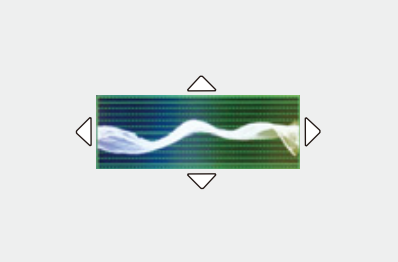
Waveform Monitor displays brightness information across the image to help evaluate exposure levels. It is commonly used for professional video exposure monitoring.
How to activate Waveform Monitor
- Open Waveform Monitor from the video assist menu.
- Set the feature to ON.
- Position the waveform display on the screen if supported.
- Monitor exposure levels while recording.
What is Waveform Monitor used for?
It helps determine whether shadows, midtones, and highlights are properly exposed.
Why do professionals use Waveform Monitor?
Waveform displays actual luminance values and provides more precise exposure feedback than viewing the image alone.
Luminance Spot Meter
Luminance Spot Meter measures brightness in a selected area of the frame.
How to activate Luminance Spot Meter
- Open Luminance Spot Meter.
- Enable the feature.
- Move the measurement area to the desired subject location.
- Check the displayed luminance value.
What is Luminance Spot Meter used for?
It helps verify exposure accuracy for specific parts of the image, such as skin tones or bright highlights.
Can the measurement area be moved?
Yes. The spot meter area can be repositioned depending on camera settings and operation mode.

(G) - Luminance Value
Zebra Pattern
Zebra Pattern overlays striped lines on areas approaching a selected brightness threshold.
How to activate Zebra Pattern
- Open Zebra Pattern.
- Enable Zebra display.
- Select the desired luminance threshold.
- Monitor highlighted areas during recording.
What does Zebra Pattern indicate?
Zebra overlays show areas that may be overexposed or reaching clipping levels.
Why are stripes appearing on the screen?
The stripes indicate brightness levels that match or exceed the selected Zebra threshold.
Are Zebra lines recorded into the video?
No. Zebra Pattern is only a monitoring overlay and is not recorded.
Different Pattern Types
[ZEBRA1]

[ZEBRA2]

[ZEBRA1+2]

Frame Marker
Frame Marker displays composition guides for framing content intended for different aspect ratios or delivery formats.
How to activate Frame Marker
- Open Frame Marker.
- Turn the marker display on.
- Select SET to configure marker style or aspect ratio.
- Frame the subject using the displayed guide.
What is Frame Marker used for?
It helps compose shots for different aspect ratios without affecting the recorded file.
Does Frame Marker crop the video?
No. It is only a display guide and does not modify the recording.
Can Frame Marker help with vertical video?
Yes. It is useful for planning social media or vertical content framing.

- (A) - Center Coordinates (0 being center of the screen)
- (B) - Frame Size
Frequently asked questions
Are these monitoring tools recorded into the video?
No. These are display assist tools only and are not embedded into the recorded footage.
Can these tools be assigned to buttons?
Yes. Many monitoring tools can be assigned to Fn buttons or Quick Menu shortcuts.
Can multiple monitoring tools be used together?
Depending on recording mode and display configuration, multiple assist overlays may be displayed simultaneously.
Important notes
- Waveform Monitor and Zebra Pattern are commonly used together for exposure control.
- Luminance Spot Meter is useful for checking skin tone exposure.
- Frame Marker is recommended when preparing content for multiple aspect ratios.