








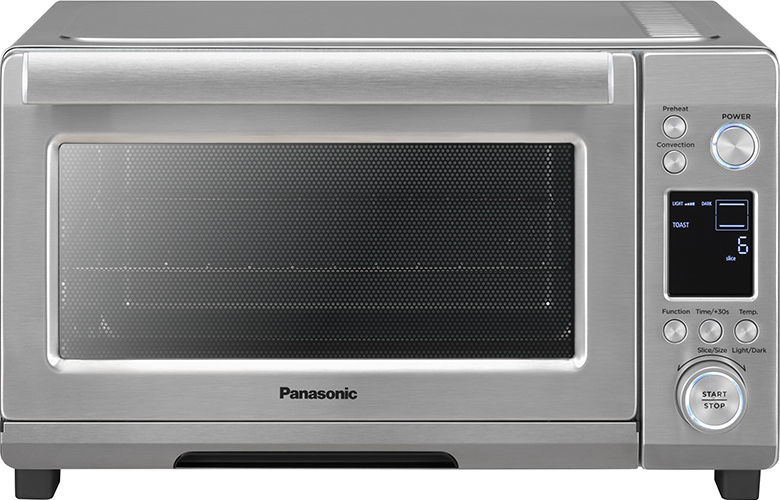



Setting Up Panasonic Kitchen+ App On Your Microwave Oven
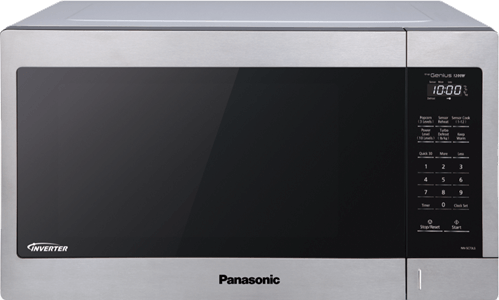
Model displayed in video is NN-CV88QS. However can apply to other Network multi Microwave Ovens
- Ensure your home wireless network is active and the microwave oven is within range.
- Plug the microwave oven into a grounded power outlet.
- Check the display for a blinking wireless connection icon
 .
. - If the icon is not blinking, press and hold the Stop/Reset button for 2 seconds.
- The display will show “1. SETUP CONNECT”.
- Press the Start/Select dial button to activate the wireless setup mode.
- Scan the QR code provided in the documentation or on the oven to install the latest version of the Panasonic Kitchen+ app on your device.

- Create an account with Panasonic’s smart kitchen partner, Fresco, then verify your account and sign in.
- In the app, navigate to the “Appliances” section and tap the [+] icon to add a new appliance.
- Select Panasonic HomeChef 4-in-1 Multi-Oven from the list of available appliances.
- Choose your home wireless network from the list.
- Be sure to select the 2.4 GHz band; do not use 5 GHz or other bands.
- When the wireless icon on the oven blinks quickly, it is in pairing mode.
- Once the icon stops blinking and remains steadily lit, your microwave is connected and ready to cook.
Turning Off the Wireless Network Function
- While in standby mode, press and hold the
 button for 2 seconds. The display will show "1.SETUP CONNECT".
 - Turn the knob one position to the right. The display will show "2.DISCONNECT WIRELESS NETWORK".
- Press the Start/Select button to disable the Wireless Network function. The display will show "SUCCESS".
- Press the button to exit the settings.
How to Reset the Wireless Network Function
- While in standby mode, press and hold the button for 2 seconds. The display will show "1.SETUP CONNECT".
- Turn the knob two positions to the right. The display will show "3.RESET WIRELESS NETWORK".
- Press the Start/Select button to reset the Wireless Network function. The display will show "SUCCESS".
About Open Source Software
- This product incorporates the following software:
- Software developed independently by or for Panasonic Corporation.
- Software owned by a third party and licensed to Panasonic Corporation.
- Software licensed under the GNU General Public License, Version 2.0 (GPL V2.0).
- Open source software other than software licensed under the GPL V2.0.
- The software categorized as (3) - (4) are distributed in the hope that it will be useful, but WITHOUT ANY WARRANTY, without even the implied warranty of MERCHANTABILITY or FITNESS FOR A PARTICULAR PURPOSE. At least three (3) years from delivery of this product, Panasonic will give to any third party who contacts us at the contact information provided below, for a charge no more than our cost of physically performing source code distribution, a complete machine-readable copy of the corresponding source code covered under GPL V2.0 or the other licenses with the obligation to do so, as well as the respective copyright notice thereof. Contact Information: [email protected]